

795 words
4 minutes
0
0
Using a VPN proxy on a local network host to enable secure internet access for other devices (taking a Jetson device as an example)——其他设备通过局域网内主机的代理VPN科学上网(以Jetson设备为例)
NOTEJetson 等设备不会自动继承主机的代理规则
1 主机端代理设置
首先确保主机已搭建代理服务(如 v2ray 等),并记录代理服务器的 IP 地址和端口号。例如:
#查看本地主机ip(不是固定的)ipconfig#IPv4 地址- 主机 IP:`192.168.3.68
- 代理端口:
10809(HTTP)或10808(SOCKS5)
1.1 检查代理端口是否监听(Windows 主机)
在 Windows PowerShell 中运行以下命令:
netstat -ano | findstr "10809"- 如果输出中包含
0.0.0.0:10809或192.168.3.68:10809,说明代理服务正在运行并监听局域网。 - 如果只有
127.0.0.1:10809,说明代理仅限本地访问,需修改代理配置。
1.2 修改代理配置以允许局域网访问
根据你的代理软件(如 Clash、Shadowsocks、v2ray 等):
- 打开代理软件的配置文件(通常是
.yaml或.json文件)。 - 找到监听地址(
bind-address或listen),将其改为:
# 允许所有 IP 访问listen: 0.0.0.0:10809或者
# 仅允许局域网访问listen: 192.168.3.68:10809这里我使用的 v2ray 代理,可以直接在设置中参数设置中允许局域网连接
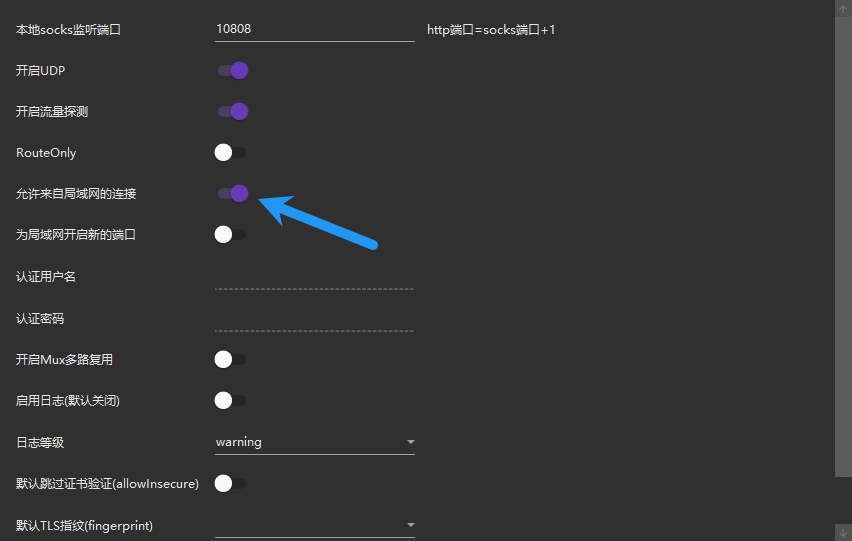
- 重启代理服务。
1.3 安全设置
- 限制访问 IP:
在路由器或主机防火墙中,仅允许 Jetson 的 IP(如
192.168.3.170)访问10808/10809` 端口。 - 在管理员终端输入
# 允许 Jetson (192.168.3.170) 访问 HTTP 代理端口 10809New-NetFirewallRule -DisplayName "Allow_Jetson_HTTP" -Direction Inbound -LocalPort 10809 -Protocol TCP -RemoteAddress 192.168.3.170 -Action Allow# 允许 Jetson 访问 SOCKS5 代理端口 10808New-NetFirewallRule -DisplayName "Allow_Jetson_SOCKS5" -Direction Inbound -LocalPort 10808 -Protocol TCP -RemoteAddress 192.168.3.170 -Action Allow- 验证规则
`# 查看已创建的规则Get-NetFirewallRule -DisplayName "Allow_Jetson_*" | Format-Table DisplayName,Enabled,Action,Direction,RemoteAddress`- 应输出
DisplayName Enabled Action Direction RemoteAddress----------- ------- ------ --------- -------------Allow_Jetson_SOCKS5 True Allow Inbound 192.168.3.170Allow_Jetson_HTTP True Allow Inbound 192.168.3.170- 完成设置后,只有 Jetson 设备能使用你的代理,其他 IP 访问会被拒绝,安全性大幅提升!
2 Jetson 端设备配置
2.1 系统级代理设置
-
图形界面设置
- 进入 Ubuntu 的“设置” → “网络” → “网络代理”,选择“手动”模式。- 填写主机的代理 IP 和端口(如 HTTP/HTTPS 代理均设为 `192.168.3.68:10809`),保存并应用。- *注意*:此方法仅影响图形界面应用(如浏览器),终端仍需单独配置。 -
全局环境变量配置
- 编辑 `/etc/environment` 文件,添加以下内容(需管理员权限):
http_proxy="http://192.168.3.68:10809"https_proxy="http://192.168.3.68:10809"no_proxy="localhost,127.0.0.1"source /etc/environment# 执行或重启生效。适用场景:所有用户和终端命令(如 apt、curl)均通过代理。
NOTE代理环境变量虽然已写入
/etc/environment,但并未被当前 Shell 会话加载 所以建议重启 Jetson 设备,这会强制重新加载所有系统环境变量(包括/etc/environment中的代理配置)
2.2 终端临时代理(仅当前会话有效)
在终端中临时设置代理:
export http_proxy=http://192.168.3.68:10809export https_proxy=http://192.168.3.68:10809配置 HTTP 代理:
git config --global http.proxy http://192.168.3.68:10809git config --global https.proxy http://192.168.3.68:10809取消代理配置:
git config --global --unset http.proxygit config --global --unset https.proxy3 测试代理效果
- 在 Jetson 终端上测试输入
curl -x http://192.168.3.68:10809 -I https://www.google.com如果返回 HTTP/2 200,说明代理已生效
- 测试无显示代理的 curl
curl -v http://www.google.com预期结果:
显示代理连接日志(如 Connecting to 192.168.3.68:10809…)
Using a VPN proxy on a local network host to enable secure internet access for other devices (taking a Jetson device as an example)——其他设备通过局域网内主机的代理VPN科学上网(以Jetson设备为例)
https://xieyi.org/posts/using-a-vpn-proxy-on-a-local-network-host-to-enable-secure-internet-access-for-other-devices-taking-a-jetson-device-as-an-example其他设备通过局域网内主机的代理vpn科学上网以jetson设备为例/